Tagged: Tech Tip

Mac Productivity Tip: Sign PDF Documents using Trackpad

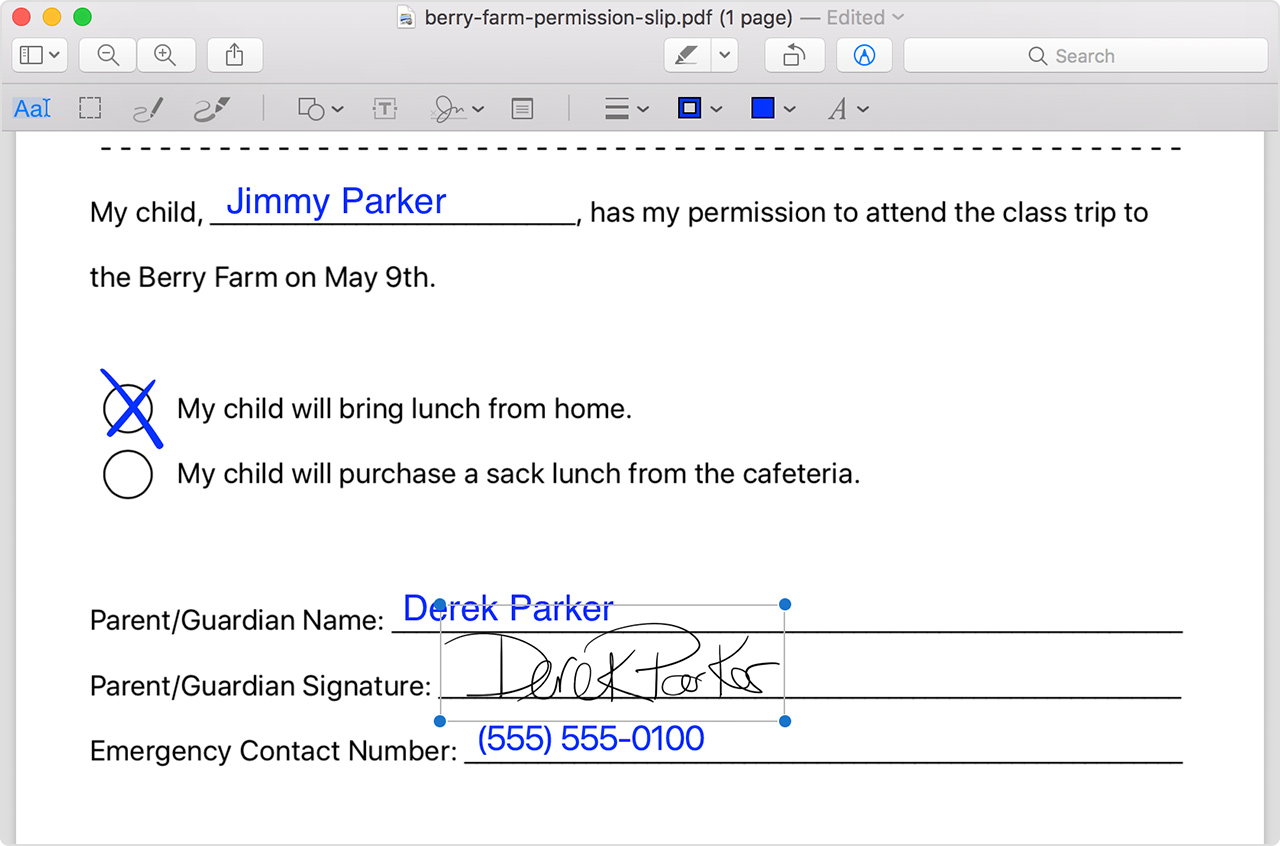
If you’re a Mac user, you are likely familiar with Preview – the handy, built-in image and PDF viewer of the macOS operating system. Like so many of our day to day programs, it has more tricks up its sleeve than you may know. It is an unpretentious application that can perform the tasks of multiple standalone utilities. Apart from quickly converting files formats, opening documents and images, and allowing for basic image editing, it also has a cool signature function that you can use to sign PDF files with a Trackpad. Here’s how:

  • With your PDF file open in Preview, look for the Markup button (a pen tip inside a circle) then look for the Signature button (a horizontal line with a small “x” and initials).
  • You will be presented with a window to create a signature. Click on Create Signature > Click Here to Begin.
    1. If you have a trackpad, sign your name with your finger. Click any key when finished signing.
    2. Alternatively, with your Mac’s built-in camera, you can sign your name on white paper and hold it up to  the camera. Preview will draw a virtual signature.
    3. Read More

  • Video: Review of Transcript Pad

    Video: Review of Transcript Pad

    Brett Burney is an e-discovery and litigation support consultant who runs the Apps In Law website. Here are his 2018 video reviews of TranscriptPad, a transcript management & summary app from Lit Software (who also make TrialPad).

    Part 1 of 2

    Part 2 of 2

    Podcast: How Aggressive Should We Get in Pleadings?

    Podcast: How Aggressive Should We Get in Pleadings?

    Pleadings can often be overlooked but are an essential part of the trial process. In this report from On The Road at ABA Annual Meeting 2018, host Rocky Dhir talks to Michael Panter, Matthew Moeller, David Pardue, and Michael Weber about the purpose of pleadings and how to craft them successfully. They discuss how pleadings reflects a lawyer’s competency and professionality and why attorneys should aim for clean-cut pleadings.
      Read More

    Windows 10 Helps Keep Your PC Free of Clutter

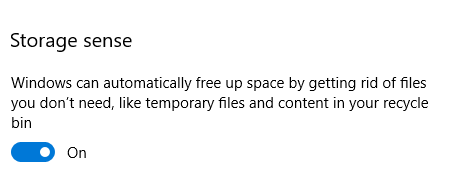
    Running out of disk space is a common curse for any one of us. Cleaning out clutter is essential for removing unnecessary files that can take up valuable storage space. Recently, Microsoft introduced “Storage Sense” in Windows 10 – a built in service that automatically removes unnecessary and temporary files as well items in the recycle bin that are more than a month old.

    To activate  go to System > Storage, and turn on Storage Sense. For a detailed how-to on optimizing Storage Sense, visit this guide from Windows Central.